Special Order Explained
Note: Not available in FrameReady Lite.
Special Order Overview
Allows you to order a product or piece of artwork and is available in two places:
-
In the Contacts file: Special Order for this customer sidebar button.
Allows you to order a product or piece of artwork without the need to create a Work Order.
See: How to Create a Special Order for a Customer -
In a Work Order button: Special Order button.
Allows you to order a product or piece of artwork and simultaneously put it on a Work Order.
After creating the Special Order, the new item:
-
is available in your Price Codes,
-
is ready to be added into a Purchase Order, and
-
is assigned to the Work Order (if clicked from a Work Order)
How to Make a Special Order from Contacts
How to Make a Special Order from a Work Order
-
Create a new Work Order and assign it to a customer.
-
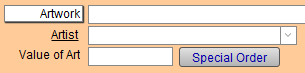
Click the Special Order button.
-
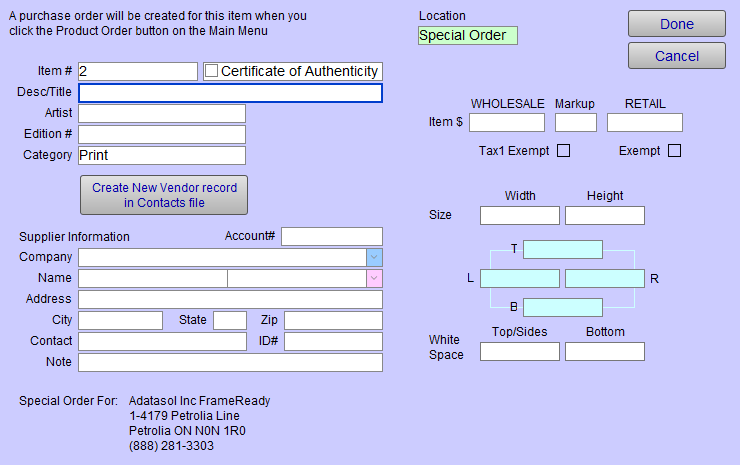
The Special Order Item screen appears.
-
An Item Number is automatically generated for your convenience. Enter a Description or Title for the item.
-
Enter a Retail price, or a Wholesale and Markup (Retail will then be calculated automatically).
-
From the Company dropdown, choose the vendor from whom you are purchasing the product.
-
Add other data as needed then click the Done button.
In the Work Order, the category, desc/title, item #, location and price of art fields auto-fill.
A new record for this item is added to your Products.
When you create a new Product Order, it is included.
Tip: Do not make prices changes to a Special Order product from a Work Order. Instead, locate the item in your Products file and make the Price (or other) changes there. Then, back in the Work Order, click the magnifying glass icon, choose Change and re-enter the Product Number (alternatively, you may search for the Product Name).
-
When completed, you can generate a Purchase Order for this item at Main Menu > Products section > Create Product Order button. The Inventory is negative.
Important! Once added to a Work Order, the Special Order cannot be directly edited. Instead, locate it in the Products file, make your changes, and then create a new Work Order with the updated Product.
Special Order Item Screen Overview
Location Field
-
Automatically set to "Special Order," not modifiable.
Item # Field
Certificate of Authenticity Checkbox
Des/Title Field
Artist Field
Edition # Field
Category Dropdown
Create New Vendor record in Contacts file Button
-
Add a new vendor directly to your Contacts.
-
FrameReady first searches company, first name, last name and if the contact is not found, the New Contact Information screen appears.
Supplier Information Section
Account # Field
-
If you know your account number with the vendor, enter it here and FrameReady auto-loads, e.g. 874523: NOPE
Company Field and Dropdown Button
-
Browse existing company records for quick selection.
Name Field and Dropdown Button
-
Browse existing name records for quick selection.
Address Field
City, State/Prov, ZIP/PC Fields
Contact
-
Also known as the "Attention" field.
ID# Field
-
If you know contact ID number, enter it and FrameReady auto-loads the data.
Note Field
Special Order For Label
Wholesale Field
Markup Field
Retail Field
Tax1, Tax2 Exempt Fields
Width, Height Fields
T, L, R, B (Margin) Fields
White Space Fields
© 2023 Adatasol, Inc.