Create a Special Order for a Customer
You can order a product or a piece of artwork without the need to create a Work Order.
Available in FrameReady full version only.
Special Order Overview
This feature allows you to order a product or piece of artwork and is available in two places:
-
On the customer's Contacts record: Special Order for this customer sidebar button.
Allows you to order a product or piece of artwork without the need to create a Work Order. -
In a Work Order: Special Order button.
Allows you to order a product or piece of artwork and simultaneously put it on a Work Order.
See: Work Orders Special Order Item
After creating the Special Order, the new item:
-
is available in your Price Codes
-
is ready to be added into a Purchase Order
-
is assigned to the Work Order (if clicked from a Work Order)
How to Make a Special Order from Contacts
-
Open your Contacts and locate your customer.
-
Click the Special Order for this customer sidebar button.

-
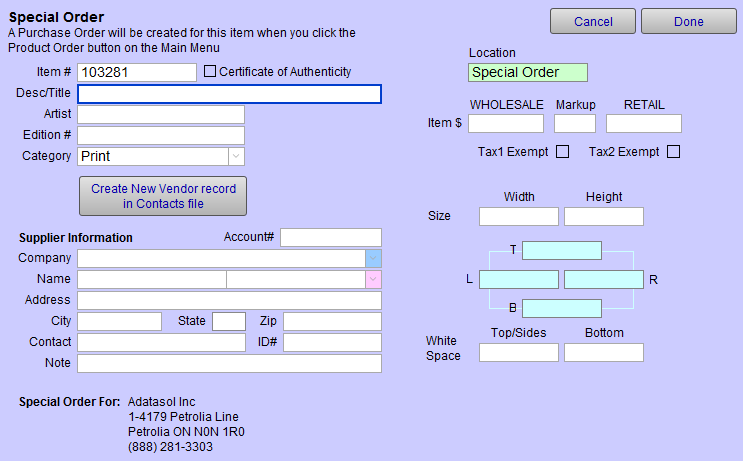
The Special Order Item screen appears.
-
An Item Number is automatically generated for your convenience.
-
Enter a Description or Title for the item.
-
Enter a Retail price, or a Wholesale and Markup (Retail is then automatically calculated).
-
From the Company dropdown, choose the vendor from whom you will be purchasing the product.
-
Add other data as needed.
-
Click the Done button to close the window.
-
In the Contact file, nothing appears to have changed; however:
A new record for this item is added to your Products.
When you create a new Product Order, it is included.
How to Make a Special Order from a Work Order
© 2023 Adatasol, Inc.