Shipping Tab
Shipping Tab Explained
Important Notes
-
If the shipping address is different than the Contact’s address, then click the Add a New Shipping Address button.
-
This information also appears on the Invoice > Shipping Address sidebar button.
-
The shipping address appears on the printed Invoice and the printed Packing List, under Ship To.
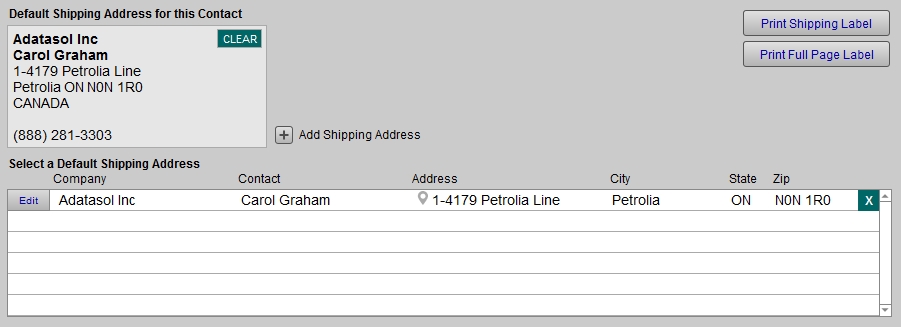
Default Shipping Address for this Contact
-
Use the Clear button to reset the default shipping address to empty.
-
The address is not deleted from the program; it can be re-instated in the Select a Default Shipping Address section.
Add a new Shipping Address Button
-
Use to create a shipping address.
-
The available fields are: Company, Contact, Address, City, State, Zip, Country, and Phone Number.
-
Click Copy from Contact Info (this copies the contact address and pastes into the shipping address fields) or Done.
Edit Button
-
Click to make changes to the shipping address. Click Done when complete.
X Button
-
Click to remove the entire shipping address line.
Important: Address changes made here in the Contacts file transfer to the Invoices filebut not vice-versa.
Print Shipping Label Button
-
Requests the starting position for the label and then prints.
Print Full Page Label Button
-
Prints an 8.5 x 11" label with your return address included.
How to Add a Shipping Address
See also:Add a Shipping Address
© 2023 Adatasol, Inc.