Artists Tab
Record all the information on living or deceased artists whose work you carry in your gallery.
-
FrameReady automatically keeps track of a customer's preferred artists whenever an Invoice is posted.
-
The Artist field can be used for special mailings and promotional opportunities.
-
The actual records for artists names are kept in a separate file and related to the Contacts file via the ID#.
Artists Tab Explained
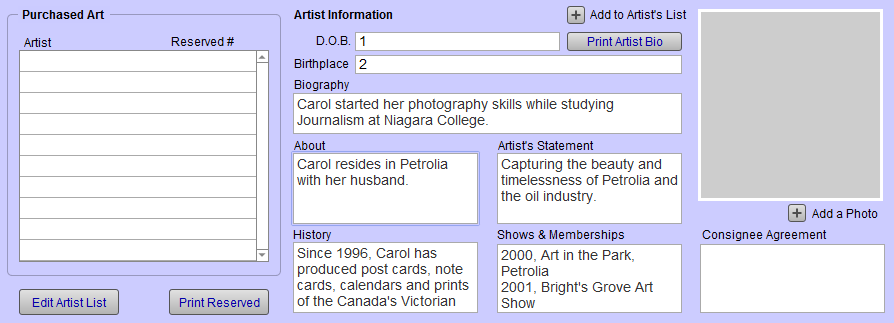
Purchased Art Table
Tip: If you wish to record your customer's favorite artists, works they may have purchased from you, or have had framed, then the Purchased Artwork section is where you do it.
Edit Artists List Button
-
You can correct the artist list or remove items by clicking the Edit Artists List button.
-
You may also enter the names of Artists preferred by a customer when you are entering the contact for the first time from the New Contact Enter Information screen.
Print Reserved Button
-
Previews a list of all customers with a Reserved # in their record, sorted by Artist’s name.
-
Includes the customer number and name, selected artist and the reserved number.
Artists Drop-down
-
The Artists chosen here are available if, in future, you create a Work Order for this customer and click the Post To Invoice button.
-
If you sell a piece of artwork (Artists Tab) that has the artist listed, then the information auto-fills here.
-
To add an artist, choose from the drop-down menu or type the artist’s name in the field and then click in the next field. Do not press the Enter or Return key. Enter one artist per field. Click in the next empty field to enter the next name.
Reserved # Field
-
Sometimes customers wish to reserve certain Limited Edition numbers. To record these for each artist they collect, simply type in the number in this field.
Delete Button
-
Permanently clears the field.
Artist Details Section
D.O.B. Field
-
The Artist’s date of birth, in any calendar format.
Birthplace Field
-
The Artist’s place of birth.
Biography Field
-
Can be pasted from any word processing document or email. *
Add a New Artist Button
-
Create a new artist record. Adding an artist here adds it to the Work Order file value list also. This same button appears on the Artist field in the Work Order.
Print Artist Bio Button
-
The purpose of this document is for galleries wanting to produce a write-up about a certain contact (artist) for a gallery show or reception.
About, Artist’s Statement, History, Shows & Memberships Text Fields
-
Unlimited text field; these fields allow for more text than the size of the box.
Add a Photo Button
-
Opens a file dialog box for selecting a graphic file.
-
Use the Resize button to scale the image down to a useful size for storage.
Image
-
The artist’s picture, if available.
Consignee Agreement Field
-
The terms and/or contract of the consignment art.
How to Edit the Artist List
-
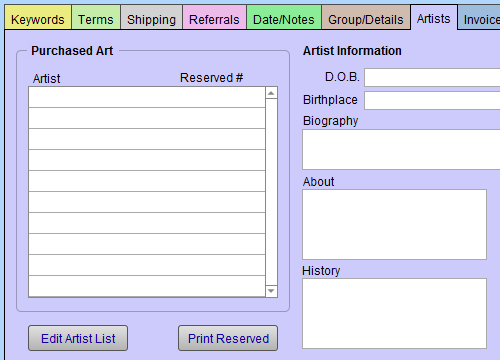
In the Contacts file, open the Artists tab and click the Edit Artist List button.
OR
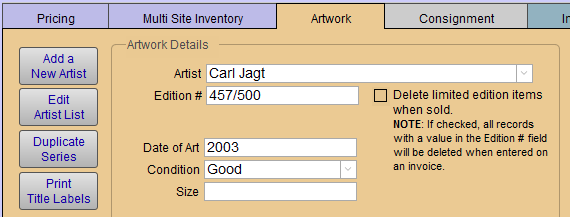
In the Products file, open the Artwork tab and click the Edit Artist List button.
-
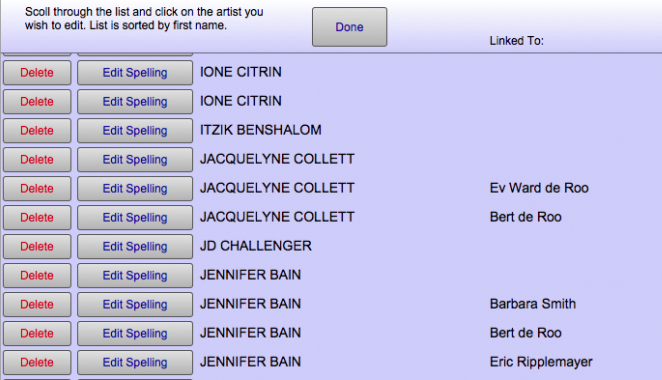
A list of artists appears. Each record has its own Delete and Edit Spelling button.
The list is sorted by Artist and also displays any customers who have a preference for that artist.
If the Artist was entered into the Products file using the New Artist button, then their name appears without a customer.
-
Use the Delete button to remove the Artist's name from the popup Artist field in the Products, Work Order, and Contacts files.
The name will also be removed from the Artist field of all customers who had previously purchased their work. The artist's name will remain on any artwork still in the Products file and on Invoices of their previously sold art.
When you click Delete, a warning appears for your confirmation and, when deleted, the entire list of their name will be removed from the screen you are viewing. -
Use the Edit Spelling button to correct the artist's name. A dialog box box appears where you can type in the correct name; another will confirm your changes. When completed, a report shows how many records were searched and how many changes were made.
The spelling will not be updated on previously created Work Orders or Invoices. -
To add a new Artist, open the Products file, open the Artwork tab, and then click the Add a New Artist button.
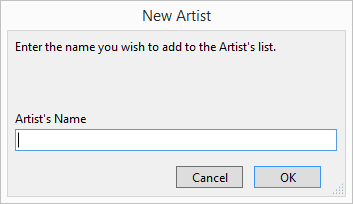
Enter the name and click OK.
© 2023 Adatasol, Inc.