Vendor Pricing Updates
Set up Unattended Vendor Updates
Save time when you update your vendors with the "process unattended" feature. Click one button and have all of your selected vendors updated to your specification without being in attendance at the computer.
How to Set up an Unattended Vendor Update
Tip: Before a specific vendor can be included in an Unattended Vendor Update, you must set it's options.
-
On the Main Menu, in the Price Codes section, click the Update Vendor Pricing button.

-
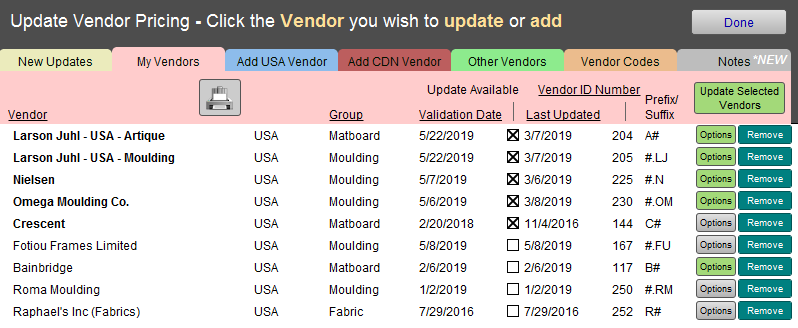
Your vendor list appears in the My Vendors tab; note that each vendor has an Options button. A green button has already been set up and a grey button has not.
-
Click the vendor's Option button.

-
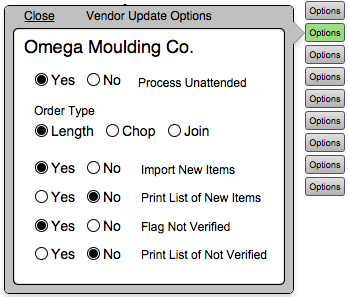
A pop-over appears.
-
To enable unattended processing for this vendor, set the Process unattended field to Yes.
Set to No if you wish to manually review each update before committing to the changes. -
Next, tell FrameReady how you prefer to order: Length, Chop or Join.
This option is only available for moulding suppliers. -
Then, tell FrameReady what to do with new items: select Yes to Import New Items.
-
If you do not want a printed list of the new items, then choose No in the Print List of New Items field.
-
Tell FrameReady what to do with items not found in the update: set Flag Not Verified to Yes so that you can investigate if it has been discontinued.
-
If you do not want a printed list of the Not Verified items, then choose No in the Print List of Not Verified field.
-
Click Close (top left) to dismiss the pop-over.
-
The Options button changes from grey to green as a visual indicator that it has been set for unattended processing.
These settings are also used when you perform a standalone vendor update. -
Repeat for all your vendors.
-
Click Done to return to the Main Menu.
-
Then see: Unattended Vendor Update