Setting Up Basics
Set up Email Information
Use this section to send email directly from FrameReady or to use third party client software.
-
See also: Email Help
Outgoing Email Tab Explained
How to open this screen
-
On the Main Menu, click the Setup Data icon.
-
Open the Email tab.
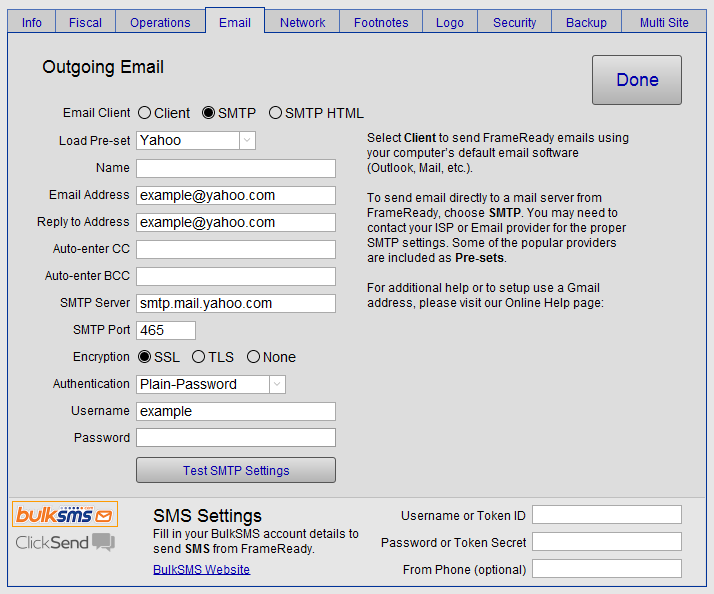
Email Client Radio Buttons
-
Chose the option you prefer to use for sending email by clicking the appropriate radio button:
-
Select Client to send FrameReady emails, e.g. eblasts, pick up notifications, etc. using third party client software (Outlook, Mail, etc).
-
If Client option is chosen then click Done.
If there is no email program associated to perform the requested action, please install an email program or, if one is already installed, create an association in the Default Program control panel (Windows). Otherwise, FrameReady will then launch your email program such as Outlook, Mail.
-
-
Select SMTP to send email directly from FrameReady to your email server.
-
You may need to contact your ISP or Email provider for the information in order to fill in the remaining fields. Some of the popular providers are included in Load Pre-sets.
-
-
Select SMTP HTML to send HTML email directly from FrameReady to your email server.
-
You may need to contact your ISP or Email provider for the information in order to fill in the remaining fields. Some of the popular providers are included in Load Pre-sets.
-
Load Pre-set Drop-down
-
The web based service you use.
-
Options include AOL, Gmail, HotMail, iCloud, .me, Yahoo.
See: Email Help, Email using Gmail, Email using AOL
Name Field
-
As seen in the "from" field, e.g. your shop name.
Email Address Field
-
Use a business email address address here to avoid flooding your personal inbox.
Reply-to Address Field
-
If you want responses (to messages sent from FrameReady) to have an alternate reply-to address, enter it here.
-
Keep in mind that your address will still appear in the From: field.
Auto-enter CC Field
-
If you desire the email sent by FrameReady to be carbon copied to another email address, enter it here.
Auto-enter BCC Field
-
If you desire the email sent by FrameReady to be blind carbon copied to another email address, enter it here.
SMTP Settings
You may need to contact your ISP or Email provider for the proper SMTP settings:
-
SMTP Server
-
SMTP Port
-
Encryption
-
Authentication
-
Username
-
Password
Username Field
-
Typically your username is the same as your email address.
-
If not, you may need to contact your ISP or Email provider.
Password Field
-
For your privacy, your password will not be revealed as plain text.
-
The password appears as a fixed series of dots; it does not reveal the number of characters in the password.
Tip: Many online webmail platforms (Gmail, AOL/Verizon, Office 365, etc.) allow for Application Passwords. We recommend that you use your platform's app password feature to generate a special password that only
FrameReady uses to log into your email account and send.
See:
Email Help
How to Test Outgoing Email from FrameReady
-
On the Main Menu, click the Setup Data icon.
-
Open the Email tab.
-
Click the Test SMTP Settings button.
A dialog box appears informing you that a test email will be sent to the address you provided.
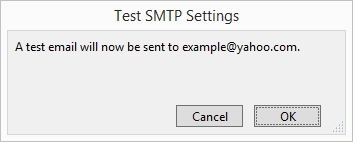
If you receive the test email, then FrameReady is properly set to send email. -
Until you receive the test email, FrameReady cannot properly email.
-
Click Done to return to the Main Menu, or select another tab.