Getting Started
The Main Menu
The Main Menu is the perfect resting place for daily operations:
It displays no private or sensitive customer or shop pricing information.
It contains short cuts to help you quickly go to all other areas of the program, find documents and create new records.
Returning to the Main Menu lets other employees know you are finished with your task.
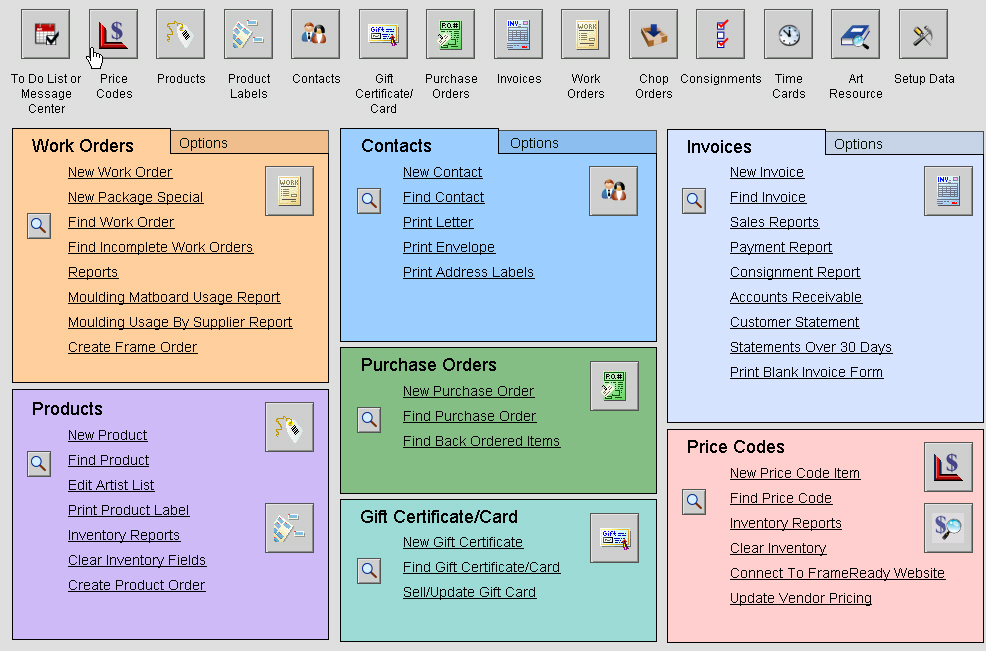
Screenshot of FrameReady's Main Menu
Get Familiar with the Main Menu
Use the top navigational buttons to move to any FrameReady file without creating a new record. Clicking on an icon is like opening a file drawer, it takes you into the corresponding file and lets you see the last record anyone was viewing.
Each of the file icons are repeated in the colored blocks corresponding to that file. They perform the same function.
The large colored blocks in the middle of the screen correspond to the specific screen color in each file. The background screen color of the file corresponds to the color of the button, a good visual reminder.
The Main Menu is also where you set up your basic business information and default options for Work Orders and Invoices (login as level3 or higher)
Play around and explore the screenshots in our Training folder. Start with the Main Menu.
Main Menu Special Features
Badges
New in FrameReady 11: Main Menu Badges
Two 'badges' are visible on the Main Menu:
The number of updates available (red circle to the left of the Update Vendor Pricing button)
The number of Incomplete Work Orders (orange circle to the right of the Find Incomplete Work Orders button)
Price Check Button
 The Price
Check button is a quick and easy way to give a customer a quote
on the retail price per foot of any moulding. It is also available from
Menu Bar > Perform > Price Check.
The Price
Check button is a quick and easy way to give a customer a quote
on the retail price per foot of any moulding. It is also available from
Menu Bar > Perform > Price Check.
Click the Price Check button.
Scan a bar code from the back of the corner sample or type the moulding number (or a partial number) into the Item field. Click Perform Find.
Note: If more than one moulding matches the search criteria, then a list appears.
Click the moulding you want. Clicking the Find button returns you to the first dialog box. If you wish to perform another find, simply click in the Item field and repeat the process.
The Retail Price per foot appears based on the price structure you have set up in the Price Codes file (which is why the background color of this dialog box is the same as the Price Codes file.)
Click Done to close this box.
Vendor Updates
Keep Your Prices Up-to-date
The Update Vendor Pricing button is only available from the Main Menu (in the Pink Price Codes Section). Automatic vendor pricing updates can be done easily with a valid subscription and internet service on your FrameReady computer.
Downloadable Vendor Pricing is Now Available For FrameReady Click to purchase or renew your vendor subscription or call the FrameReady Team at 1-888-281-3303 during business hours (EST). We support over 200 vendors in the US, Canada, Mexico, UK and Australia. Our annual subscription membership package entitles you to instant supplier pricing downloads. |
Successful shops make it a habit to click this button on a regular basis (perhaps the start of your business week) in order to see which of their preferred vendors has updated prices.
If there is an update for a preferred vendor, a checkmark appears beside the Validation Date. If you do not wish to perform any updates, click Cancel.
See Vendor Pricing Updates for complete instructions.
Information at a Glance
The Login Account field (lower left) shows which account you are logged into, i.e. level1, level2... On FrameReady Multi site this field also shows the specific location, i.e. 1-level1, 2-level3, etc.
Guest computers display "Guest" (lower left). Hovering the mouse over this label reveals the Guest computer's IP address.
The Time and Today's date and day of the week appears in the bottom right.
Screen Size
The Auto Zoom feature allows you to take advantage of higher screen resolutions so that the program will attempt to fill your entire screen.
FrameReady 10.2+ is designed to take advantage of a 1920x1080 HD screen.
Simply click on the check box.
When running the program on a network and you wish to have the auto zoom either default to On or Off, this procedure must be done on the Host/Server computer using a copy of FileMaker Pro.
Reports Printable from the Main Menu
The following documents and reports can be printed from within the Main Menu:
Pro Tips
All underlined words are buttons. Clicking such buttons will open detail windows.
The Create Frame Order and Create Product Order are only available from the Main Menu.
Sales Reports are accessible only from the Main Menu when logged into level 4.
Next: Production Flow