Work Orders List View Explained
Tip: Use the List View screen for production flow purposes.
At the end of the work day, return to this screen to easily check-in finished frame jobs and alert your customer’s via email.
Top Navbar Buttons in List View

Find All Button
-
Shows every Work Order ever created, including Estimates.
Printer Icon Button
-
When clicked in List View, prompts you to choose to print the Current Record or the Found Set.

-
Invokes a dialog box with multiple print options for customer and/or shop.
Find Incomplete Button
-
Updates the list view to only include items marked as incomplete.
Print List Button
-
Print List of incomplete orders to be followed in your back room.
Sort, Unsort Button
-
Sort each column by clicking on each underlined word, i.e. WO#, Date, Name.
New Work Order Button
-
Click New to create a new Work Order.
Work Order List View Explained
UnMark All, Mark Found Set, Find Marked Records Buttons
Record Information Labels
-
The record number of the record, total number of records, sort mode.
Work Order Records Table
-
FrameReady Multi Site only - Sites are colour-coded and table row background for Work Orders and Invoices indicate which site created the record. In the Work Order, each site (store) has it’s own colour to identify (in List View) which store created the Work Order.
-
Site 1 - Orange
Site 2 - Green
Site 3 - Purple
Site 4 - Pink
Site 5 - Aqua
Site 6 - Peach -
All other sites are orange like Site 1.
Marked Column
-
Click to sort; marked items appear at the top of the list.
WO# Column
-
Click to sort from lowest to highest.
Date Column
-
Click to sort from oldest to most recent.
Name Column
-
Click to sort alphabetically (first name). Unnamed entries at the bottom are sorted oldest to newest.
Qty Column
-
Click to sort from smallest to largest. Unnamed entries at the top are sorted oldest to newest.
Description Column
-
Click to sort alphabetically.
Due Date Column
-
Click to sort from oldest to most recent. Entries without a due date are sorted by creation date.
Priority Column
-
The status of the frame job. Rush, Promised, Normal, Back Order or you may change the list using Edit… entry.
-
Click to sort by importance.
-
RUSH priority displays in white text on red background.
Location Column
-
Record where the artwork is stored prior to framing or the storage shelf of the finished product. Sets this values list using Edit…entry.
-
Click to sort by location. Entries without a location date are sorted by creation date.
-
See also: Location field - Tracking your artwork / order location
Status Column
-
Sort by the order as on Hold, Incomplete or Complete.
Email Column
-
Visible only for Contact records with an email address.
-
The Email button (launches your email program or connects to your email sever) and composes an email entitled "Framing Ready for Pick-up".
-
Not sortable.
Value of Art Column
-
The dollar value of the art, as identified in the Work Order.
-
Not sortable.
Footer Area
-
Displays record count and found set.
-
Displays Value of Artwork total (level3 and level4 only)
New in FrameReady 12!
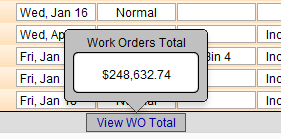
View WO Total Button
-
Displays the dollar total of all the Work Orders in List View.
-
Earlier versions could take extra time for this calculation, especially if the number of records was high, when switching from Form View to List View.
© 2023 Adatasol, Inc.