Vendor Update Screen Explained
Vendor Update Screen Explained
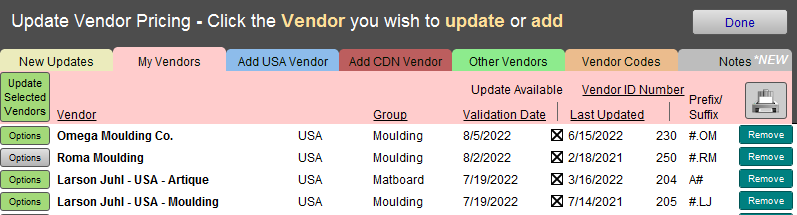
New Updates Tab
-
Of the vendors you have installed, lists only those with an available update (note the check in the box).
My Vendors Tab
-
List all the vendors you have installed in FrameReady.
USA/CDN/Other Tab
-
Lists all available vendors for the chosen region.
-
See the New Vendor Section for adding new vendors.
Vendor Codes Tab
-
Lists all of the vendors who provide a MSRP matrix (manufacturer’s suggested retail price). The price is based on the UI.
-
In FrameReady 10 these codes have been incorporated into the Codes table (in earlier versions these were kept in separate databases inaccessible to the framer.)
-
Update Canadian Vendor Codes - A pricing option only available to Canadians is to utilize a vendor pricing matrix. The matrix specifies a retail price based on a code which has been assigned to a moulding profile (E.g., LW4 refers to a Larson Juhl code 4 for wood moulding). The code relates to a matrix which specifies a retail price at given UI increments. Vendor-supplied matrixes are updated periodically by Adatasol Inc. and can be updated from the Update Vendor Pricing screen if your Annual Service Subscription/Membership is active.
Notes Tab
-
Displays any important notices or changes regarding individual vendors.
-
When necessary, Adatasol Inc. will post a note regarding one of the vendor updates. A notification symbol or icon on the tab will indicate that there is a new note (with the most current note at the top.) For example, a vendor may have changed moulding numbers thus creating a conflict with existing numbers; a note would explain how to resolve the issue.
Update Selected Vendors Button
-
Begins the Process Unattended functionality - FrameReady will automatically process vendor updates, requiring no input or answering dialog boxes. You can click Update Selected Vendors at the end of the business day and when you return in the morning the procedure will be finished.
-
Pertains only to vendors that have been marked as "Process Unattended - Yes" in their individual Options window (the Options button turns green).
Printer Icon Button
-
Prints the current vendor list.
Vendor List Explained

Note: Each line item represents an individual moulding or matboard vendor. Click to download vendor data from FrameReady's servers.
See also: Automated Updates with Vendor Subscription
Options Button
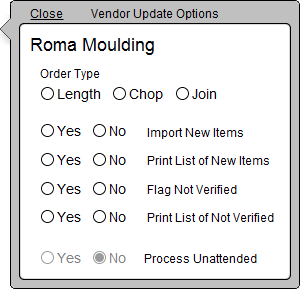
This dialog box corresponds to the step-by-step dialog boxes which normally appear during the update procedure.
-
Is grey when options are not set; is green when the Options are set and active.
-
Click to view a popover with additional settings.
-
Order Type - click one of the radio buttons Length, Chop, Join.
-
Import New Items - click Yes if you want the new products added.
-
Print List of New Items - click Yes if you want a list (e.g. may be helpful to print barcodes for your corner samples.
-
Flag Not Verified - click Yes if you want to investigate if an item is discontinued.
-
Print List of Not Verified - click Yes if you want a printed list of items not found in the update.
-
Process Unattended - This feature sets FrameReady to automatic processing, requiring no input or answering dialog boxes.
-
Set to No if you wish to review each update before committing to the changes.
-
If you chose Yes, then you can click Update All Vendors at the end of the business day and when you return in the morning the procedure will be finished.
-
Vendor Column
-
The vendor's full name and country of operations.
Group Column
-
Moulding, Matboard, or Fabric.
Validation Date Column
-
Date of the most current update available for that specific vendor.
Update Available
-
An X in the checkbox indicates an update is available.
Last Updated Column
-
The Update Notification box is marked with an checkmark if the vendor needs to be updated (the validation date is more recent than the last updated date).
-
The date pulled from your Price Code file for that specific vendor (the last time that vendor provided an update).
Vendor ID Number Column
-
FrameReady's internal ID used to identify vendors.
Prefix/Suffix Column
-
FrameReady's internal system used to associate items with a vendors.
Remove Button
-
Deletes all the Price Code records for the vendor. You may only wish to do this if you have none of their products remaining in stock.
-
A dialog box appears, requesting confirmation, so Vendor data cannot be accidentally removed.
© 2023 Adatasol, Inc.