Set up Work Order QuickBooks Options
When posting Work Orders to an Invoice, you can decide which QuickBooks category it is assigned to when pushed to your QuickBooks. This will save time and ensure the entry is correct.
How to open the Work Order Options
-
On the Main Menu, in the Work Orders section, open the Options tab.
-
Click the More Options... button.
-
Open the QB tab.
Work Order Options QB tab Explained
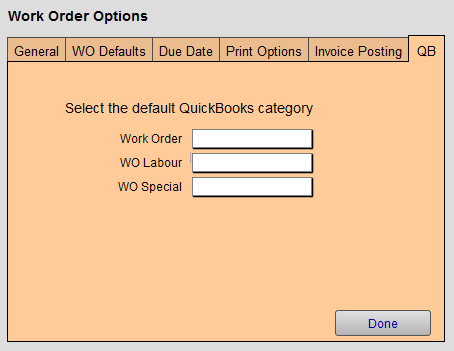
Default QuickBooks Categories for Work Orders
Select a QuickBooks entry from the drop down list for each of the three Work Order categories. You can choose the same category for all three.
Work Order Field
-
Appears on the Line Item Entry screen when a Work Order is posted to an Invoice.
-
Used for all Work Orders.
Work Labour Field
-
Only appears on an Invoice when a Work Order with labor (fitting charges) is non-taxable or the labour is set to not be discounted.
-
In either case, the Fitting pricing follows different rules than the rest of the Work Order pricing and will appear on a separate line on the Invoice.
Work Special Field
-
Only appears on an Invoice when a Work Order contains a Special Order and is posted to an Invoice.
-
The special order is created by using the Special Order button to purchase art from a third party or outside source.
© 2023 Adatasol, Inc.