Set up a Security Password
Setup Data - Security tab Explained
Use this section to add password restrictions to various fields and functions of FrameReady.
Security Password Overview
-
In addition to the four built-in passwords, you may create a separate Security Password to restrict access for all FrameReady login accounts.
-
If no password is entered in the Password field, then no additional authorization is required.
-
Anyone can access the restricted screens by entering the correct security password. When you leave the restricted file, it is locked again and access is blocked.
Allow Access Checkboxes
Checking any of these checkboxes by-passes the password requirement and allows the user access without a password.
-
Sales reports
-
End of Day (only) Reports
-
Inventory Reports
-
Products
-
Price Codes
Caution: Adatasol Inc. assumes no responsibility for lost or forgotten security passwords.
How to set a Security Password
You must log into FrameReady in a level2 or higher account in order to create a security password.
-
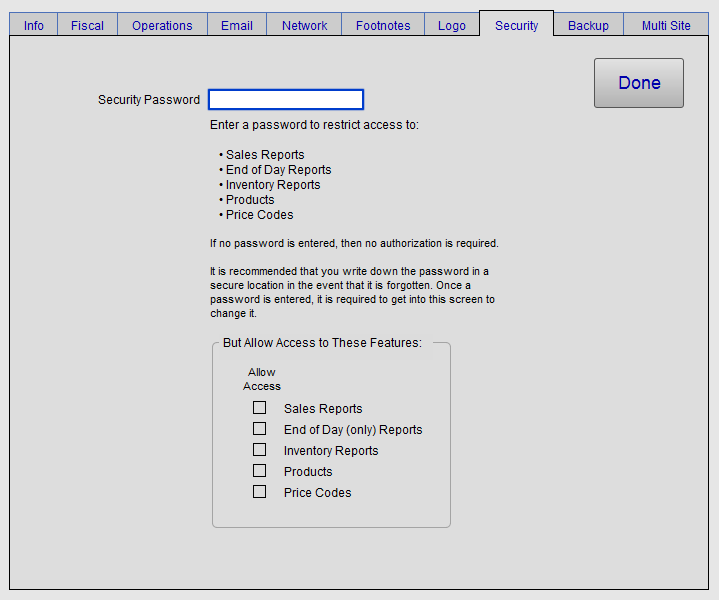
On the Main Menu, click the Setup Data icon and open the Security tab.
-
Enter a password into the Password field; it will appear in plain text.
If no password is entered, then no authorization is required.
We recommend you write down the new password in a secure location (against the event it is forgotten). Once a password is entered, it is required in order to enter this screen again.
-
Mark with an X the areas that you want staff to access.
By default, all unmarked items are automatically restricted. -
Click the Done button.
-
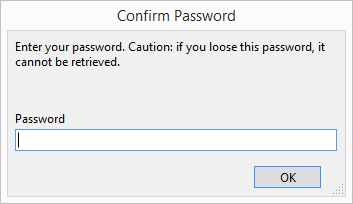
A Confirm Password dialog appears.
-
Now any attempt to access those portions of FrameReady result in a password request:
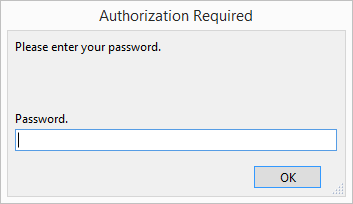
Note: Leaving the password field blank will allow free movement throughout the program depending on the level of access.
Tip: It is recommended that you write down the password in a secure location in the event that it is forgotten. Once a password is entered, that exact same password is required to change it.
How to Remove a Security Password
You must log into FrameReady in a level2 or higher account in order to remove a security password.
-
On the Main Menu, click the Setup Data icon and open the Security tab.
-
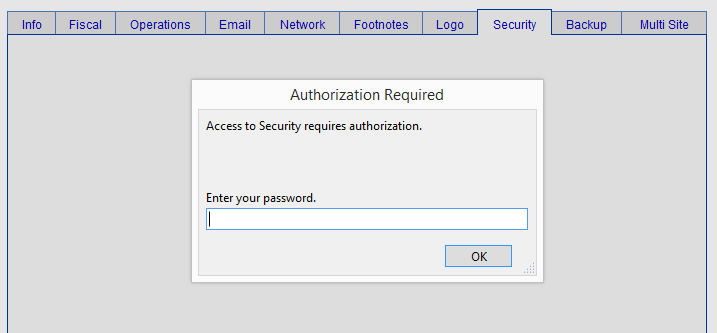
A password request appears.
-
Enter your password into the Password field that appears and click the OK button.
-
Click the X button next to the password field to remove the password.
Note: If no password is entered, then no authorization will be required. -
Click the Done button.
© 2023 Adatasol, Inc.