Set up Retail Categories
Retail products and artwork are sorted by category on financial reports. The categories can also be used to speed up a search for a product.
Before You Begin...
-
Categories help track sales of specific items. Give some consideration to the categories you will need.
-
Artwork framed for gallery sale maintains its original category, e.g. L/E Print, and the word "Framed" appears in front of it, e.g. Framed L/E Print.
-
The category list is also used on Invoices and sales Reports.
-
The Category field can also be used to speed up product searches when you perform a find.
How to Create a Retail Category
-
To enter a new category, click the New Category sidebar button.

-
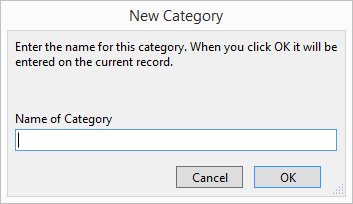
A dialog box appears.
-
Enter the name for the category and click OK.
The category is added to FrameReady and the current record is moved into the new category. Revert the product to the previous category if this is not needed.
Note: Each item must belong to a category. Choose a category only after the product number is entered. A category only appears in an Invoice.
How to Move Items to a New Category
-
Go to Products and click the Edit Category sidebar button.

-
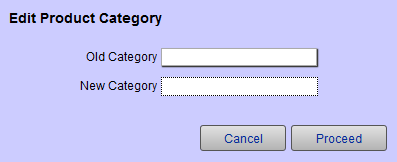
A dialog box with a drop-down menu of your existing categories appears.
-
Select the Category you wish to change.
-
In the New Category field, type in the new category name.
-
Click Proceed.
The old category, which has been replaced, no longer appears in your drop-down menu of Categories. The old category will, however, remain in your drop-down Category field in the Invoice file (provided you have sold at least one item in that category). -
Additionally, editing the category list helps to create more useful reports.
© 2023 Adatasol, Inc.