Receive Payment Tab
Tip: This tab is located at the bottom right of the Contacts file.
Receive Payment Tab Explained
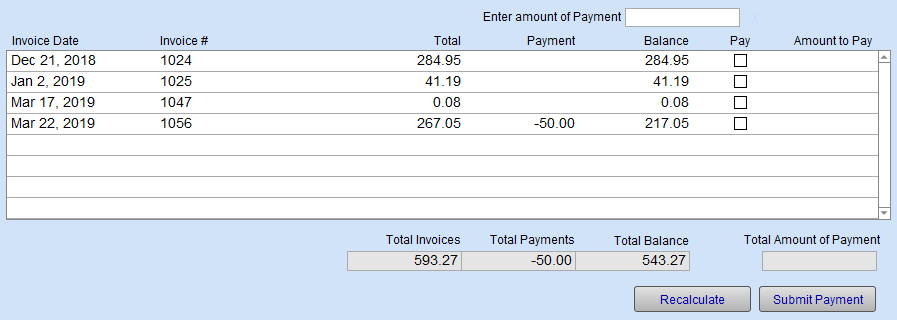
Enter amount of Payment Field
-
The value of the payment you are about to tender.
Date Column
-
The date of the Invoice.
Inv Num Column
-
The Invoice number.
Total Column
-
The total of the Invoice.
Payment Column
-
If applicable, the amount tendered against the Invoice.
Pay Checkbox
-
A flag to indicate that a payment, when tendered, will be applied against that specific Invoice.
Total Invoices Field
-
The total of all invoices combined.
-
This field is not modifiable.
Total Payments Field
-
The total payments made against all Invoices.
-
This field is not modifiable.
Total Balances Field
-
The amount outstanding/owing against all Invoices.
-
This field is not modifiable.
Total Amount of Payment Field
-
If the value does not match the Enter amount of Payment field,
-
This field is not modifiable.
Recalculate Button
-
Recalculates.
Submit Payment Button
-
A window opens to confirm the dollar amount to be applied.
-
Choose the Payment Date, Payment Tender, and add a Reference Number if applicable.
How to Enter Amounts to be Paid
-
From the Contact's record, open the Receive Payment tab.
-
Click in the Pay checkbox to pay the Invoice in full,
Or enter a partial amount in the Amount to Pay field,
Or enter an amount in the Enter amount of Payment field and then select the Invoices to which it will be applied. (As you click the Pay checkboxes, the Enter amount of Payment value decreases as it is applied to each Invoice.) -
Click the Submit Payment button.
A dialog box appears with today's date automatically entered. -
Select the Tender from the drop-down list.
-
In the Reference field, enter the cheque (check) number or credit card authorization number.
-
Click the Process Payment button.
A dialog box appears asking if you want to print the Invoice(s) to which the payments were applied. -
Click Yes to print or No to cancel the printing.
© 2023 Adatasol, Inc.