Product Inventory List
-
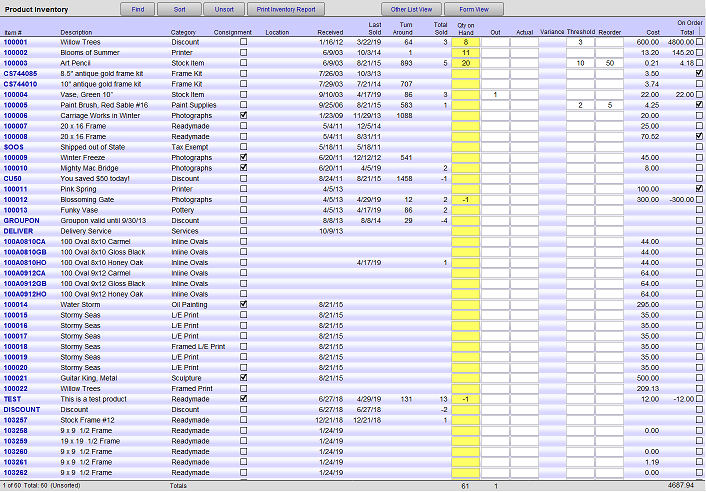
The Inventory List View button can be found in List View (top right) or in Form View (in the Pricing tab)
Product Inventory List Explained
Find Button
-
Switches to a product find screen, search by item number.
Sort Button
-
Adjust the order in which Products are listed.
Unsort Button
-
Reverts the order of all the records you are viewing into the order back to the order in which they were created (i.e., sorted by creation date).
Print Inventory Report Button
-
Generates a printer-friendly version of the Inventory List screen. Click the Continue button to access the print dialog box to either print or cancel.
Other List View Button
-
Switches to a list view with more retail information of the items currently displayed on your screen.
Form View Button
-
Switch to the Products form view.
The following calculation fields cannot be modified in this layout: Turn Around, Variance, Cost, Total.
Fields which can be edited are: Marked, Description, Received, Total Sold, Actual, Qty, Threshold, Reorder and Cost.
Item No, Description, Category Column
-
Click to switch to the selected item's form view.
Consignment Column
-
Visually indicates the items consignment status.
Location Column
-
Data is from the Products file.
Received Column
-
Data is from the Products file.
Last Sold Column
-
Data is from the Products file.
Turn Around Column
-
Data is from the Products file.
Total Sold Column
-
The number of items sold since inventory was first entered. When items are returned, the Qty is reduced.
In Field
-
The number of whole items (not pieces) in inventory.
Out Field
-
If the item is on consignment, the number of said items out on consignment.
Actual Field
-
Actual is used when you perform a physical inventory. Quantities are entered into this field and a report is generated for year-end purposes.
Variance Column
-
The difference between the Qty field and the Actual. Large variances should be investigated.
Threshold Field
-
Data is from the Products file.
Reorder Field
-
Data is from the Products file.
Cost Column
-
The combined price of the wholesale Cost field field and the work order wholesale cost (WO WHOLESALE) field shown on the form view screen.
Total Column
-
The wholesale calculation of the amount in Qty multiplied by the value in Cost. The total wholesale dollar value of the items listed on the screen is shown at the bottom of the column.
On Order Checkbox
-
Data is from the Products file.
© 2023 Adatasol, Inc.