Mount/Stretch Detail Screen
Tip: The tabs at the top of each Work Order Detail Screen allow you to move through the Work Order in different ways.
Mount/Stretch Detail Screen Explained
-
The Mount/Stretch Detail Menu is available when you require several different design elements.
-
When pricing and production will change based on the number of elements used, this menu will allow you to provide all of the details for the order.
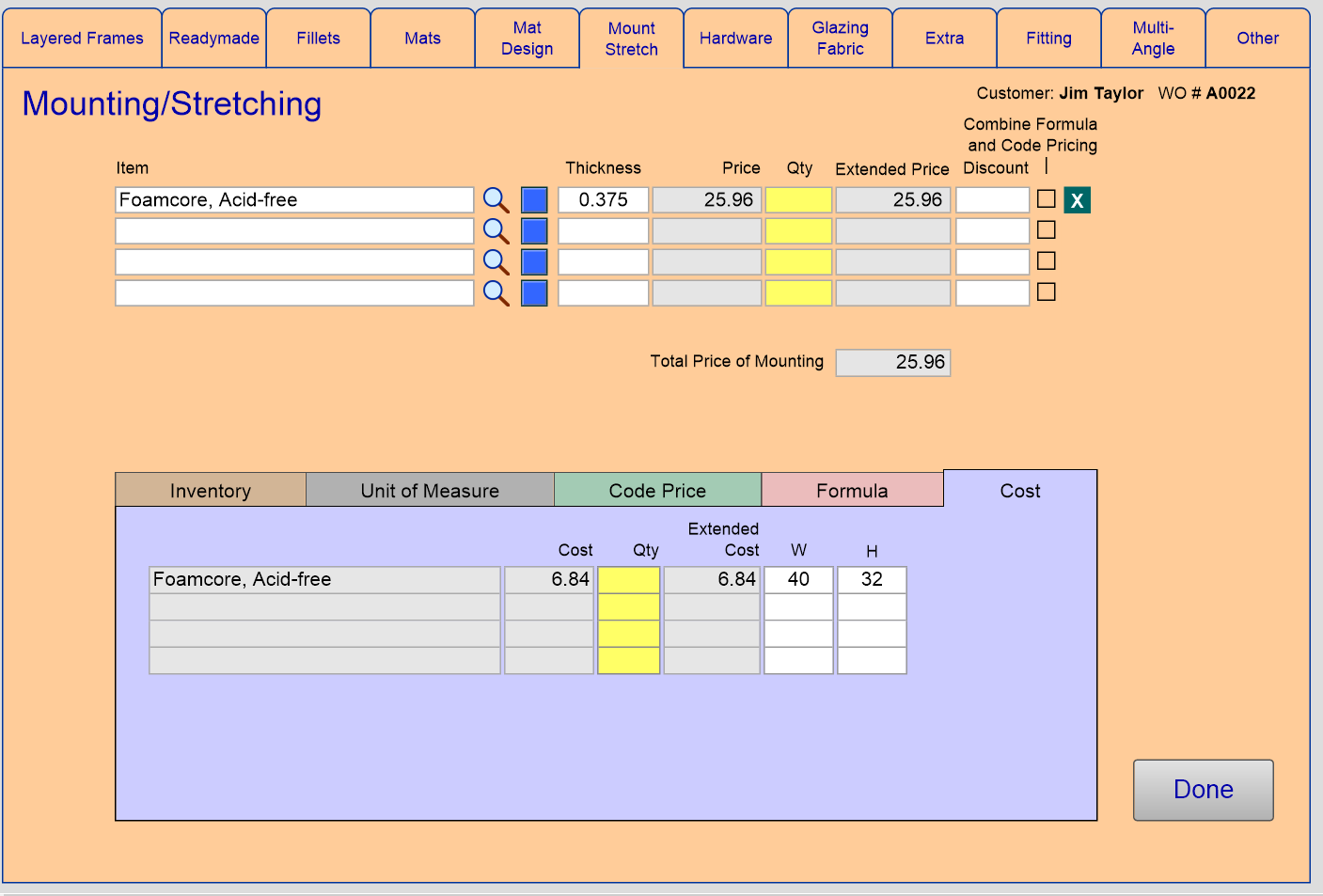
- Enter up to four mounting or stretching options, check on inventory, and add individual discounts.
Mount/Stretch Detail Screen Explained
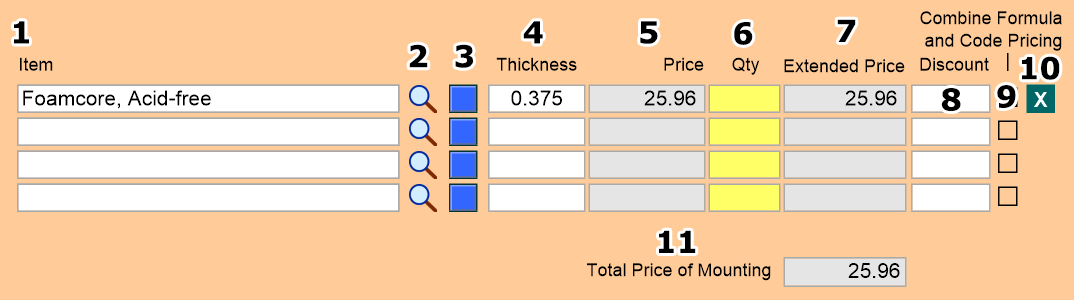
1) Item Field
-
Click on the empty field to reveal the list of possible Mounting/Stretching options pulled from the Price Code file.
2) Magnifying Glass Icon
-
Use to perform a look-up of the component by ID, Supplier, or Group. Best used when you do not know the exact ID for the mounting option.
Tip: You can enter just the first two or three digits/characters of the item in the search screen to receive potential results.
3) Blue Override Button
-
Used to enter items (names and retail price) for items that are not currently in your Price Codes file.
Tip: This is a handy feature if you are pricing a new mat or pricing a freshly discontinued matboard.
4) Thickness Field
-
Fills in this value based on the information in the Price Codes file. Effects the total depth required for framing components shown on the main Work Order screen.
5) Price Field
-
Retail price for one component based on the current work order sizing and calculated from data within the Price Codes file.
6) Qty Field
-
Allowing you to apply the fees for mounting and stretching in the case where you need to mount or stretch multiple pieces for one frame.
7) Extended Price Field
-
The total price for component based on the quantity entered.
8) Discount Field
-
Used to apply a percentage discount to the individual component. Must be notated on every component it should be applied to.
9) Combine Formula and Code Pricing Checkbox
-
When there is a code present, selecting this box will revise the pricing for the selected component.
Tip: If not checked, then do not check here as it may double the price of the item (provided that a code appears in the Code Price tab below).
10) Clear (X) Button
-
Select this button to remove the line item permanently.
11) Total Price for the Mounting Field
-
A not modifiable field listing the total price for the matboards selected for the order.
Mount/Stretch Detail Tabs
Inventory Tab
-
Provides basic inventory information about the current mounting and stretching options selected.
-
Details are brought over from the Price Codes file to show thesize of a full sheet and current inventory as you have noted in your database.
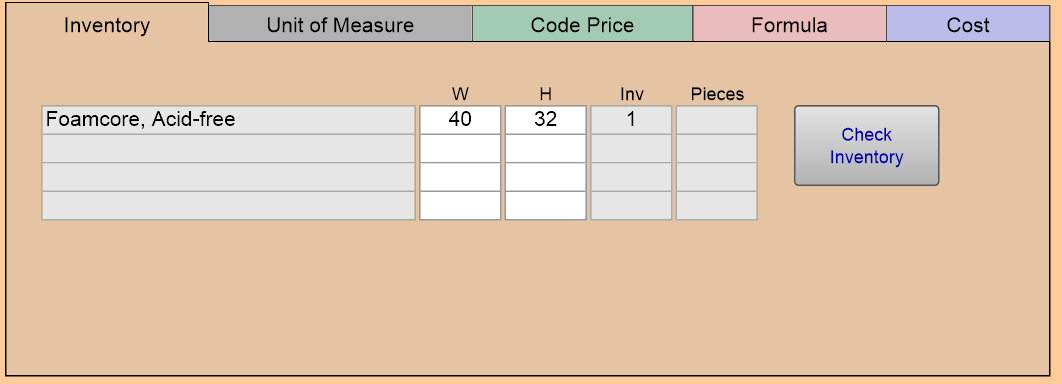
W and H Fields
-
Displays the Width and Height listed in the Price Codes file for the component.
Inv Field
-
The current number of sheets available in your inventory.
Pieces Field
-
The number of pieces that can be cut from component.
Check Inventory Button
-
Click to display inventory data for all of the components in the order. Switch to the component to review by selecting the corresponding button.
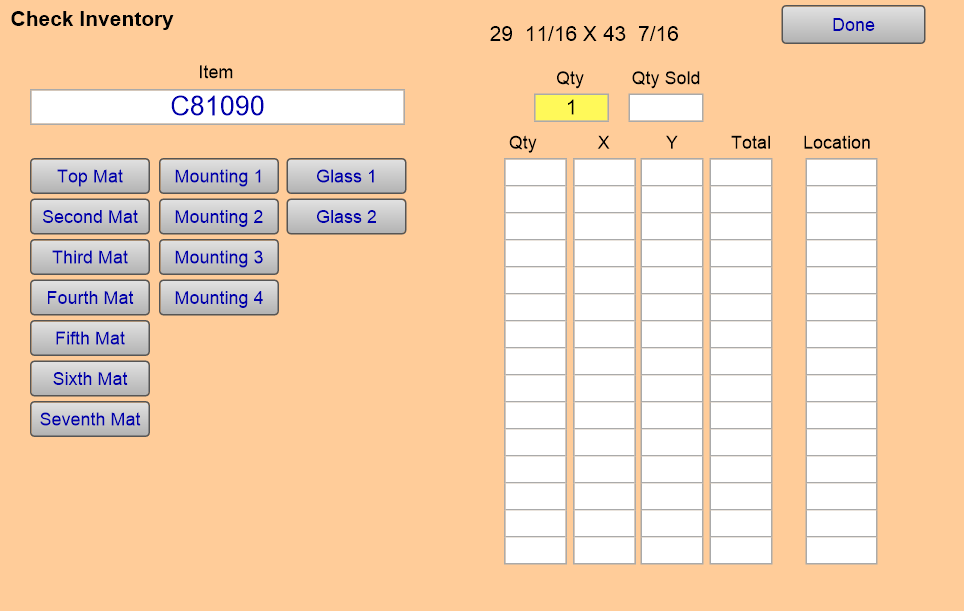
Tip: You can add to your current inventory by adding to this menu. The additions will be added to your Price Codes file.
Qty Field
-
The current amount you listed in the inventory within the Price Codes file.
X and Y Field
-
Width and Height for the component.
Total Field
-
Total inventory (not price).
Location Field
-
The physical location you listed within the Price Codes file.
Unit of Measure Tab
-
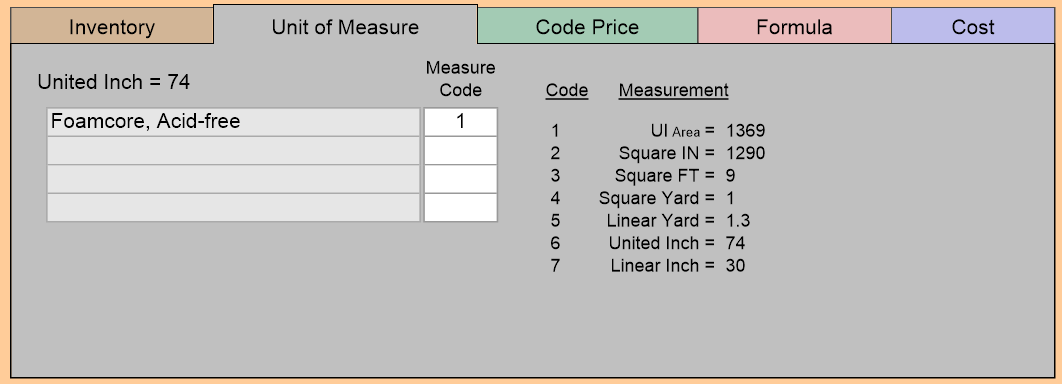
The price of each component is based on how it is being measured: UI, square inch, square foot, square yard, linear yard, united inch, and linear inch.
-
A simple chart reveals the measure code for each component along with the calculated measurement.
Code Price Tab
-
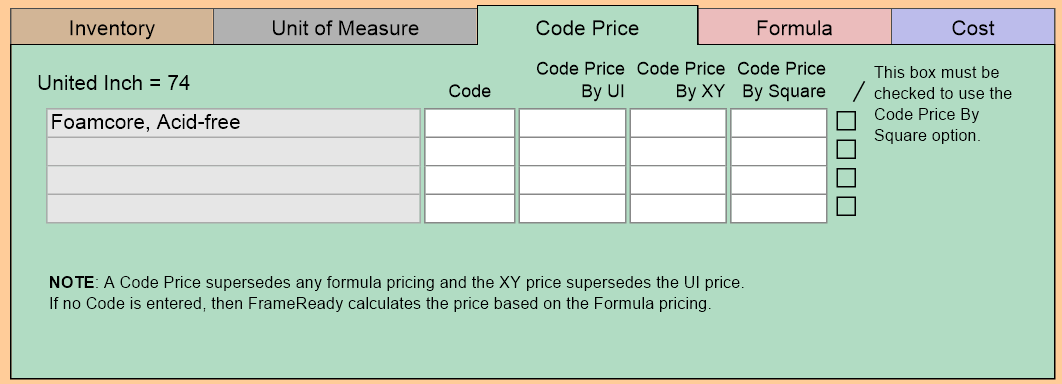
The details for each value will populate from the Price Codes file.
-
Using the Code pricing will override any Formula pricing.
-
Changes made here will only effect the current work order and not future orders.
Code Field
-
Enter the code you would like to override to.
Code Price by XY Field
-
Will have priority over UI pricing.
Code Price by UI Field
-
Will only effect the pricing if nothing is entered in the XY field.
Formula Tab
-
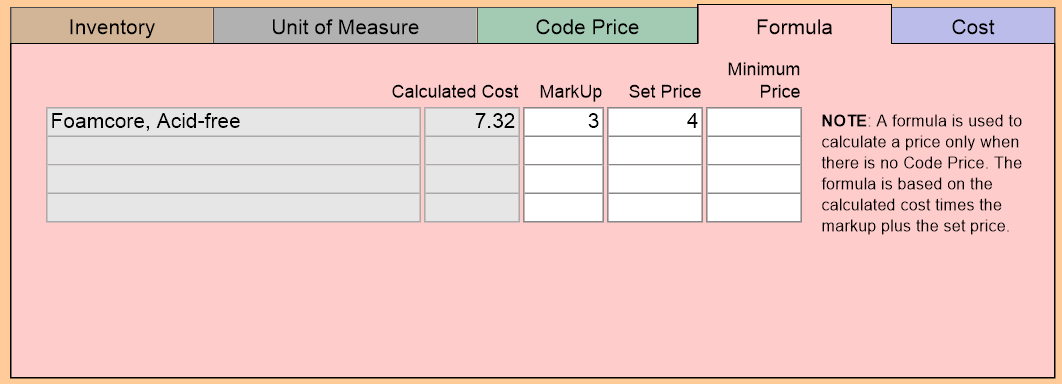
The formulas created on this tab will only override the prices when there is no Code Price entered for the specific mat design.
Cost Tab
-
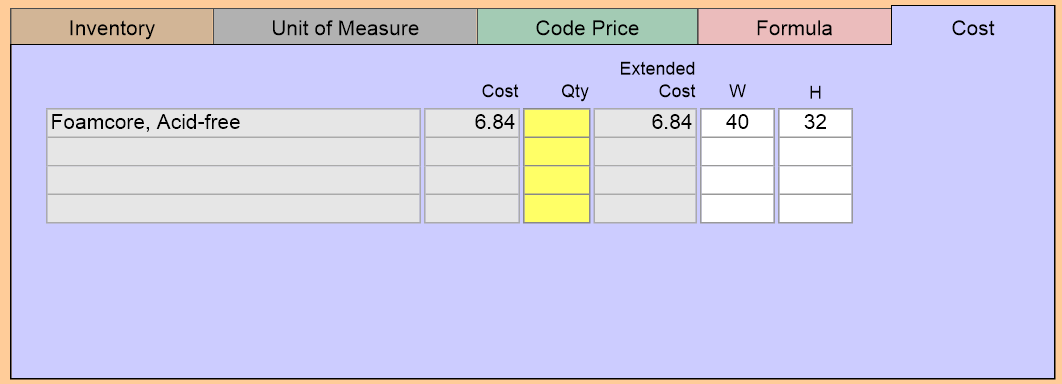
Cost calculations cannot be edited on this tab. These values originate from the Price Codes file.
© 2023 Adatasol, Inc.