Create a Tax Exempt Invoice
If a customer qualifies for any type of retail sales tax exemption, use these steps.
How to Create a Tax Exempt Invoice
If you have already Added the Customer to the Invoice
-
From the Invoice Line Item screen, locate and click the Tax Exempt # field (upper right).

-
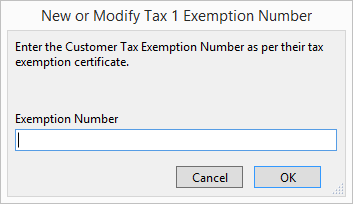
The New or Modify Tax 1 Exemption Number dialog appears.
-
Enter the Exception Number.and click OK.
FrameReady adjusts the Invoice's tax calculation. -
Optionally, open the Contacts file and switch to the Terms tab. Add an Expiry Date; adjust the Status field to indicate if the certificate is pending, on file, etc.
If you are Selling to a New Customer
-
Create a New Invoice.
-
Click the New Customer sidebar button.
-
In the New Contact Information window, enter the exemption number into the appropriate Tax Exempt # field.
-
Fill out other fields as needed. Click Done.
-
Add your Work Orders or Products as usual to the Invoice.
FrameReady excludes tax on the Invoice. -
You may require the Expiry date and Status field; switch to the Contact file > Terms tab and add them.
Tip: Alternatively, you can enter the Tax Exemption number on the Contact's record OR directly on an Work Order.
© 2023 Adatasol, Inc.