Create a Blank Purchase Order
-
In order to create the automated vendor shopping list in a Purchase Order, you must first create a Frame Order.
-
Make sure FrameReady knows who you order your framing materials from. See Setting up Purchase Orders.
How to Create a Blank Purchase Order
If you wish to create a blank PO and fill it in yourself:
-
On the Main Menu, in the Purchase Orders section, click the New Purchase Order button.

-
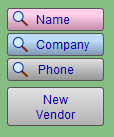
In the Company field, select the vendor.
-
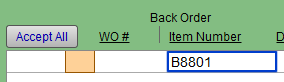
Manually enter the items using the Item # field.
Any notes for this order may be included in the Notes field and will display on the printed document. -
The PO can be printed, or emailed as a PDF file. You can print any order at any time, as often as you like, as many copies as you like.
Printing with page breaks allows only one vendor to appear per page. Great for faxing. -
The PO defaults to NotPlaced. When the order is sent to the company, mark the radio button Placed to indicate that it has been dealt with. Mark as Received when the order arrives.

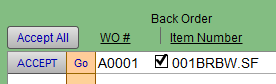
Tip: When the order is Received, check the list against the packing sheet to see items which arrived and can be accepted into inventory using the Accept button. The button changes to show that inventory has been Updated. If a different amount arrived, then first adjust the number in Qty or Footage fields before clicking Accept.
-
If an item did not arrive, then mark the Back Order checkbox. This item will automatically be added/reordered on the next PO. (Then, when it is added to the new PO, it will be removed from the current purchase order.)
© 2023 Adatasol, Inc.