Change an Account Password
Important: Retrieval of lost or forgotten passwords by Adatasol Inc. is not covered under the annual tech support contract.
-
A login account is used to open FrameReady.
-
You can change the password to any of the four built-in FrameReady login accounts.
-
Make careful note of the new password.
How to Change an Account Level Password
Caution: Retrieval of lost or forgotten passwords by the FrameReady Team is not covered under the tech support.
Please note that account names cannot be changed.
-
Log into the level4 account.
-
From the Main Menu, in the menu bar, click Accounts and choose Change Password.
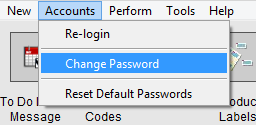
This option is only available when logged into the level4 account. -
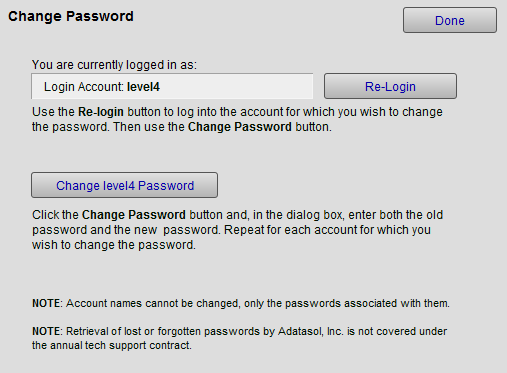
The Change Password window appears.
-
In order to change any account password, you must first enter the login credentials for that account. Click the Re-Login button.
-
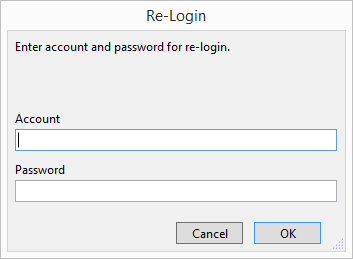
The Re-Login dialog appears.
-
Enter the Account and Password of the account you want to change. Click OK.
-
The field "You are currently logged in as" updates to display the account level that can now be changed. Click the Change Password button.
-
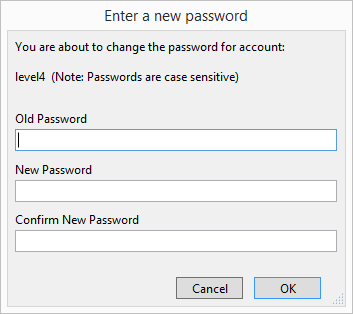
The Enter a New Password dialog appears.
-
Enter the old password, the new password and confirm new password. Click OK.
IMPORTANT: Passwords are case sensitive.
-
Repeat from Step 1 for each account password you wish to change.
-
When finished, click Done to return to the Main Menu.
Note: Account names cannot be changed, only the passwords associated with them.
Caution: Retrieval of lost or forgotten passwords by the FrameReady Team is not covered under the annual tech support contract.
© 2023 Adatasol, Inc.