Backups Using Mac Automator
Automator is an included macOS application used to automate repetitive tasks through point-and-click or drag and drop across a wide variety of programs.
Built-in Backups
-
Mac Automator supports Calendar Alarms; these are triggered when an event in your Calendar happens.
-
We will use Calendar Alarms to create a daily, recurring event to copy files.
-
Open Finder and go into the Applications folder.
-
Double-click the Automator icon.

-
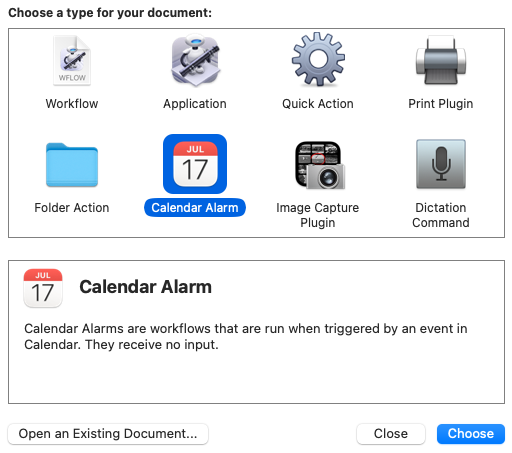
When Automator opens, a dialog window prompts you to choose a type for your document.
-
Select Calendar Alarm and click Choose.
Calendar Alarms are triggered when an event in your Calendar happens. We will use this to create a daily, recurring event to copy files. -
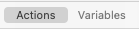
At the top of the Automator window is are buttons labelled Actions and Variables. Make sure Actions is highlighted.
Add the Find Finder Items Action Step
-
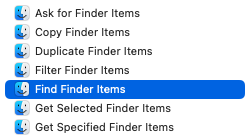
In the search bar to the right, enter: find finder items

-
The list below the search bar automatically filters.
-
Double-click Find Finder Items or drag it to the gray work flow area.
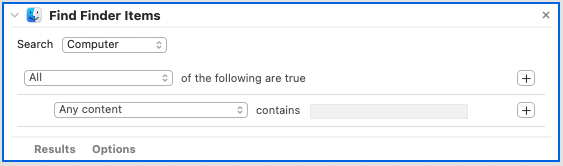
This is what the action looks like at first:
-
In the Search dropdown, choose Other... and navigate to your FileMaker Server Backups folder.
-
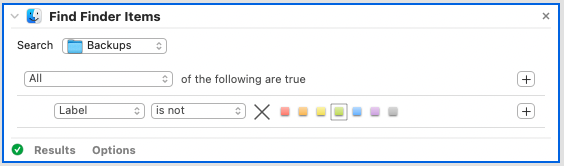
Click the "Any content" dropdown and choose: Label.
-
Click the "is" dropdown and change it to "is not"
-
Select the green icon.
-
This Step will find all files in the Backups folder whose label icon is NOT green.
-
This is what the action looks like now:
Add the Label Finder Items Action Step
-
In the top search bar, enter: label finder items

-
The list below the search bar automatically filters.

-
Double-click Label Finder Items or drag it to the gray work flow area.
This is what the action looks like at first:

-
Select the green icon.
This Action Step will add a green label to all files in the Backups folder. -
This is what the action looks like now:

Add the Copy Finder Items Action Step
-
In the top search bar, enter: copy finder items

-
The list below the search bar automatically filters.

-
Double-click Copy Finder Items or drag it to the gray work flow area.
This is what the action looks like at first:

-
Click the "Desktop" dropdown, choose Other... and navigate to your destination folder for copying the files.
-
Check the Replacing existing files checkmark.
This Action Step will copy the found files from the Backups folder. -
This is what the action looks like now:

© 2023 Adatasol, Inc.