Add your own Mounting
How to Create a New Record for Mounting
-
On the Main Menu, in the Price Codes section, click the New Price Codes Item button.

-
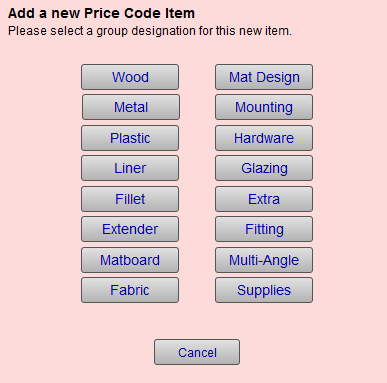
The New Price Code Item window appears.
-
Choose Mounting.
-
Enter the name of the Item, e.g. Fabric- glue method.
Items in this group appear alphabetically in the drop-down list on the Work Order screen. Take note of the items you wish to list and how you want them to appear. If ‘drymount’ appears first in the Item field, then all the dry mount items will be grouped together. If ‘Hinging’ is listed first, then it will be listed with the other items starting with the letter H. For Fabric mounting you may want to list them together with the prefix F- heat press, F- spray, F- roll-on and taping, etc. -
Enter the thickness of the mounting.
This value is added to the calculated depth of the project and used to determine if it exceeds the Rabbet Depth of the Frame. -
In the Cost field, enter the wholesale cost you have paid for one sheet of mount board.
This is used in your formula to determine the retail price. -
Enter the Manufacturer # (version 9) or the Order Number (version 8).
This is the manufacturer's number which is used when the item is reordered. The Order Number will appear on the Purchase Order.
Remember: It is the Item # that appears in the drop-down list on the Work Order screen -- not the Manufacturer # (version 9) or the Order # (version 8). -
Enter the Supplier or manufacturer.
Tip: If there is no supplier or you are unsure, then select In House from the drop-down list.
-
Open the Mounting Pricing tab.

-
Enter the markup, or markup and set price, or just set price, or use a code table.
Choose the pricing structure which will work best for the item you are pricing.
a) If you use a markup, then you can select the circle to price by United Inch area or square inch. The markup is a multiplier.
b) When using a Markup with a Set Price, then this can create a higher retail price for smaller sizes.
c) The Set Price alone can be used for a fixed dollar amount or a flat rate fee, e.g. security hanger = $10.
d) A Code Table is a way to price by size (e.g. glass 8x10 = $12) or by United Inch (e.g. 18 UI = $12) or Square Inch (e.g. 80 SQ IN = $12). -
Click the Reset button to calculate the retail prices in the price sampler on the right side of the blue pricing tab. This will show you how your retail prices will look.
-
Once you are satisfied with the pricing, use the Calendar icon button to enter today’s date in the Date field (top right corner). This will help you to know how long it has been since you have last updated this item.
© 2023 Adatasol, Inc.