Work Orders
Group or "Batch" Orders together with Job #
When a customer brings in framing jobs over several days and wants them on the same proposal list or invoice, then you need to identify the Work Orders to be grouped together.
-
It’s easy to group Work Orders from different time periods together onto one Invoice or one proposal.
-
The key is to use the same Job Number on the Work Orders. The Job Number field acts like a stapler: it groups Work Orders together by looking for the same number.
Group Orders Together using a Job Number
-
FrameReady automatically groups all Work Orders for the same customer created on the same day -- provided you only click the Post to Invoice button on the very last Work Order in the group. But when a customer brings in framing jobs over several days and wants them on the same proposal list or invoice, then you need to identify the Work Orders to be grouped together.
-
The way to do this is to enter the same Job Number into each Work Order, for example on Work Order A0001 enter Job Number 0138; on Work Order A0002 also enter Job Number 0138; etc.
-
By entering the same number into the Job Number field, FrameReady can bring these orders together onto one invoice or proposal.
-
You can also create small groups using different Job Numbers.
-
Do not use " or ' or # characters.
-
Each Job Number should be unique.
For example, if a customer has six orders and wants three on one invoice and three on another:
-
Use Job Number 9998 for Work Orders A0006, A0007, A0008
-
Use Job Number 9997 for Work Orders A0009, A0010, A0011
-
This batches three Work Orders onto two separate proposals or invoices.
How to add a Job Number to Work Order
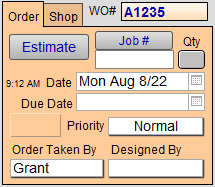
The Job Number field is in the "Shop Management" section of the Work Order.
-
Open the Order tab to see the Job Number field and button.
-
The Job Number field has the special function of batching together all other Work Orders which have been given the same number.
Use this field when Work Orders fall outside of the usual parameters for posting to an Invoice, e.g. orders created on different days for the same customer and you want to post them to one Invoice.
Caution: Do not click the Post to Invoice sidebar button until the last order in the batch has received its Job Number.
-
The Job Number field is a manual entry field.
In many situations, you may not want to enter a job number at all. There is no way to set up the job numbers to be created automatically (such as the Work Order numbers do). It must be entered manually. -
To see all existing Job Numbers or to add an existing Job Number, click the Job # button. Then click a number to select it.
-
To use a new Job Number that is not in the list, hand enter it into the Job Number field.
-
The Qty button reflects the number of Work Orders assigned to the above Job Number.

Click to switch to a List View of those Work Orders. If the Qty button is blank, then there are no connected Work Orders.
Work Order Print Previews are Blank
Important: Do not use the foot and inches characters of ' and "
Also do not use the pound (octothorp / hash) character #
Tip: Job numbers appear sorted in numeric order.
-
Many shops prefer to use Job Numbers in a decreasing sequence, such as 999, 998, 997 and so on. This allows them to quickly see the current Job Numbers instead of scrolling to the bottom of the list. Still, you can start at 001 and increase the numbers too, it's your preference.
-
The important thing is to make sure that you do not use a Job Number which has already been assigned to a different group of Work Orders (because they will be included).