Invoices
Take a Payment
Take a payment from a customer and apply it to an unpaid Invoice.
How to Take a Payment
See also: How to Take a Payment on Multiple Invoices
-
Locate or create an Invoice for the customer.
-
Click the Enter a Payment button.
-
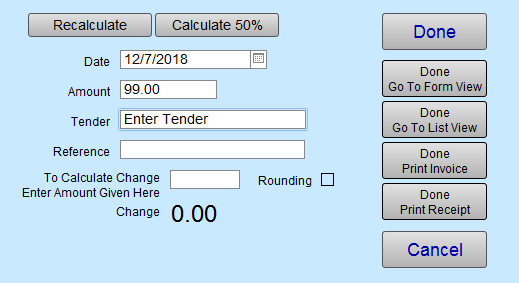
The Receipts window appears.
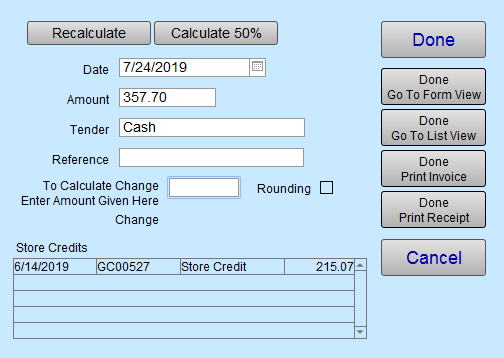
Note: If the customer has Store Credit, then an alert appears and the Store Credits are listed:
-
Choose the appropriate Tender from the list.
If it is a check/cheque, or Gift Card, or Gift Certificate, then enter the number in the Reference field. Otherwise leave blank. -
The full Amount is always entered automatically.
Manually change the amount or click on the Calculate 50% button and FrameReady automatically adds a down payment for half. -
Click one of the following:
-
Done
-
Done Go To Form View
-
Done go to List View
-
Done Print Invoice
-
Done Print Receipt
-
If the customer does not want to make a payment after all, then click Cancel.
-
-
You will now see the Invoice screen of the Invoice file.
-
-
To print, click the Printer button (top right).
-
To email a PDF of the Invoice, click the envelope (top right).
-
To make changes to the invoice, click the Data Entry button (purple).
-
-
When finished, click the Main Menu button (top left).
See also: Invoice Quick Reference Page