Reports and Documents
Print Art Identification Tags
The Art ID Tag is a handy production tool; print and attach to unframed artwork for back room identification or adhere to wrapped, finished products as a label.
-
Art ID tags can be printed on demand or set to print automatically while also printing Work Orders.
-
Cut into strips if more than one Art ID Tag prints per page.
-
If a Work Order has a quantity greater than one, then multiple Art ID tags can be printed (use the top Printer icon only) .
-
A barcode is included to quickly find the Work Order: When customers pick up the work, scan the tag to see if the Work Order has been posted to an Invoice or to see if a balance is owing.
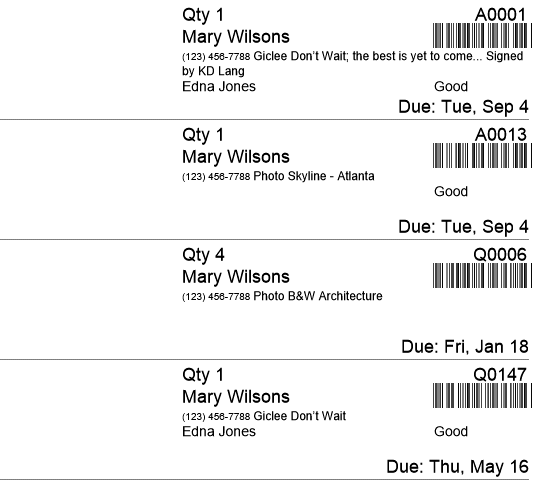
Printed Example
Four separate Work Orders
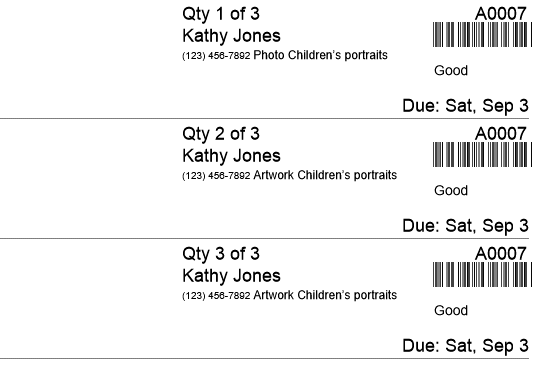
One Work Order with a Quantity of 3
If a Work Order has a quantity greater than one, then multiple Art ID tags can be printed. You must click the top Printer icon only.
How to Print Art ID Tags
-
The Printer icon at the top of the Work Order screen, prints one tag (going down the page) for each number in the yellow Qty box. For example, if you have a Quantity of two, then the tag shows "1 of 2", and then "2 of 2". This is a great way to print one Art ID Tag for each piece.
-
Alternatively, the Print This Customer's Work Orders button, the Print Documents button > "All [first name] orders" button, and the Print Documents button > Art ID Tags button, prints one tag (going down the page) for each Work Order. But instead of showing "1 of 2" and "2 of 2", these buttons print one tag for each Work Order and display the Work Order Qty, e.g. Qty: 4.
-
Locate the Work Order(s) for which to print tags.
-
If a Work Order has a quantity greater than one, then click the top Printer icon.

-
Click the Print Documents sidebar button.

-
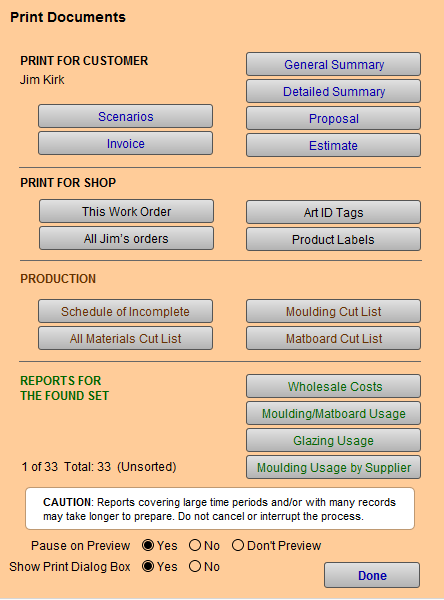
The Print Documents window opens.
-
In the Print for Shop section, click the Art ID Tags button.
-
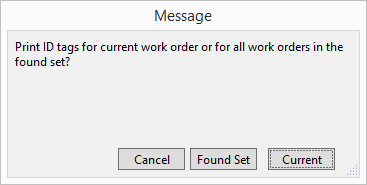
A dialog box appears, asking you to choose Cancel, Found Set, or Current.
-
Select Found Set or Current.
A print preview appears. -
Click Continue.
-
Cut the tags along the dotted lines.
How to set FrameReady to always Print Art ID Tags
-
On the Main Menu, in the Work Order section, open the Options tab.
-
Click the More Options... button.
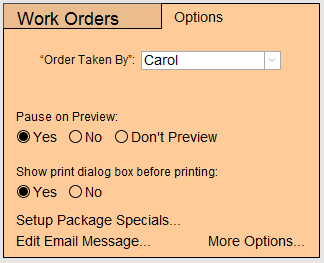
-
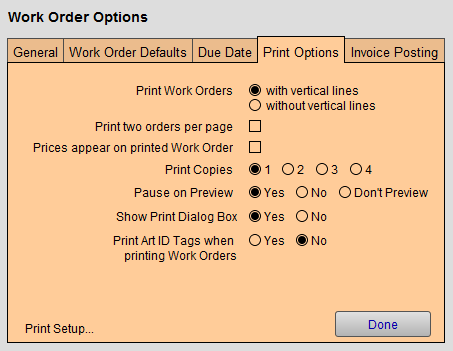
The Work Order Options dialog appears; open the Print Options tab.
-
Select Yes in the the Print Art ID tags when printing Work Orders field.
-
Click Done to exit.
-
Now, when you instruct FrameReady to print a Work Order, an Art ID tag is automatically added to the print job. Work Orders with a quantity greater than one will print multiple copies.