Invoices
Set up Invoice Thank You Message
How to Edit the Invoice Thank You Message
See also: Email a Thank You Note
-
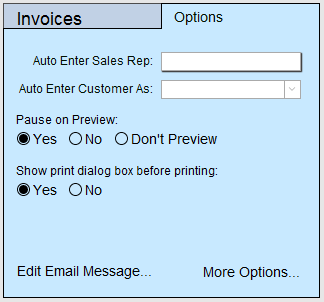
On the Main Menu, open the Options tab in the Invoices section.
-
Click the Edit Email Message button.

-
Open the appropriate tab to edit:

Default Invoice Email Message
Subject: Your Payment #<Invoice Number>
Body:
Dear <First Name> <Last Name>,
We have received your payment for <Invoice Number> dated <Invoice Date>.
We value you as a preferred customer and look forward to future business with you.
Sincerely,
<Sales Rep>
<Your Business Name>
<Your Business Address>
<Your Business Phone>
How to Edit the Message
-
Click your cursor into the Subject or Body field.
-
Position the cursor to the precise position you wish to insert a merge field.
-
Click a merge field button, e.g. First Name, and observe that <First Name> was inserted into the text. This is the mail merge code that FrameReady will use to build the custom message.
-
When complete, click Done.
How to Use the Mail Merge Fields
-
It is recommended that you use the field buttons to insert the merge codes as this eliminates typos.
-
To remove an inserted merge code, position the cursor and use the Backspace / Delete keys to remove the code (be sure to also remove the < and > brackets)
Merge Fields for Invoice Email Explained
Company
-
Inserts the contents of the Company field from the Contact file.
First Name
-
Inserts the contents of the Last Name field from the Contact file. (Remember to enter a space between the first and last name fields in the email message.)
Invoice #
-
Inserts the Business Name as set in Setup Data > Info tab
Your Business Address
-
Inserts the Business Address as set in Setup Data > Info tab
Your Business Phone
-
Inserts the Business Phone as set in Setup Data > Info tab
Your Business Hours
-
Inserts the Business Hours as set in Setup Data > Operations tab
Merge Fields for Statement By Aging / Date Range Email
Company
-
Inserts the contents of the Company field from the Contact file.
First Name
-
Inserts the contents of the Last Name field from the Contact file. (Remember to enter a space between the first and last name fields in the email message.)
Customer Number
-
Inserts the Business Name as set in Setup Data > Info tab
Your Business Address
-
Inserts the Business Address as set in Setup Data > Info tab
Your Business Phone
-
Inserts the Business Phone as set in Setup Data > Info tab
Your Business Hours
-
Inserts the Business Hours as set in Setup Data > Operations tab