Setting Up Basics
Setting up your Work Order Options - Invoice Posting Tab
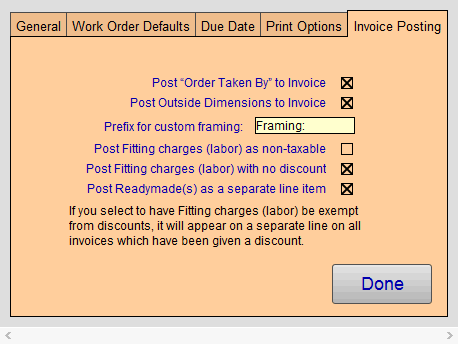
Post "Order Taken By" to Invoice Checkbox
-
Select this option if you would like the name of the Sales Rep who took the order to appear on the invoice.
Post Outside Dimensions to Invoice Checkbox
-
The outer dimensions of a finished frame job are calculated on the work order. Select this option if you wish to have these measurements appear on the printed invoice, perhaps for the benefit of the installer.
Prefix for Custom Framing Field
-
Change this field to whatever suits your needs.
-
The prefix will appear on the line item entry of the invoice in front of the piece’s description you entered in the Work Order file > Artwork Entry Section, e. g. Framing: Majestic Mountains
Post Fitting Charges (labor) as Non-taxable Checkbox
-
Select this option if your locale qualifies for non-taxable labor.
-
The Fitting field on the Work Order is used for this purpose.
-
Labor will be shown separately on the Work Order and will post as a separate line on an Invoice with both non-taxable fields checked. You can select or deselect this option on individual Work Orders by clicking on Fitting> Special tab.
Post Fitting Charges (labor) with No Discount Checkbox
-
Select this option if you wish to prevent the Work Order percent discount field from being applied to the Fitting (labor) field.
-
-
When checked, the Fitting charges (labor) appears as a separate line on the Work Order total (and the Invoice) when a value is entered in the Percent Discount field.
-
When left unchecked, the Fitting charges (labor) is included in the Percent Discount and does not appear as a separate line item.
-
-
You can select or deselect this option on individual Work Orders by clicking on the underlined heading for Fitting> Special tab.
-
See also: How to Enter a Discount
If you set Fitting charges (labor) to be exempt from discounts, then Fitting charges will appear on a separate line on all Invoices which have been given a percentage discount.
If you do not want this, you can instead calculate and apply a dollar discount and the Fitting charges will not appear on a separate line.
Post Readymade(s) as a Separate Line Item Checkbox
-
This will separate any readymade frame, listed into your Product file which you brought over into a Work Order, into a separate listing on the Invoice.