Setting Up Basics
Setting up your Invoice Options
or
The Invoice Options screen allows you to select or change printing options, enter commission percentages, select receipt printer and automatic entry of due date on invoice, sales rep or identification of framing on invoices.
Caution: If you are operating FrameReady on a network, then these default settings must be set up on the Host, otherwise they will revert back to their original setting when you shut down.
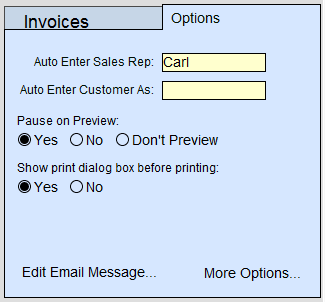
Auto Enter Sales Rep Field
-
Leave blank to ensure that staff enter their name on the Invoice. FrameReady then requires the person transacting the sale to identify themselves when creating an Invoice.
-
Employee names may be listed on Invoice drop-down for easy selection.
Auto Enter Customer As Field
-
The value which appears in the box will be entered onto all new Invoices created from the Invoice file. (Does not apply to Invoices created from Work Orders.) The auto-entry is helpful with quick sales from walk-in traffic.
Tip: Create a customer in your contact file with the first and last name of Walk-in and then, enter that ID# into this field. This will allow you to track the items which draw in your walk-in sales.
Pause on Preview Radio Buttons
Check Yes to display a preview of the document and requires you to click the Continue button in order to present the Print Dialog box. This pause will allow you to also save the document as a PDF by clicking on "Save As PDF..." before it prints.
Check No to display a preview of the document, however, it will not pause but will either advance to the Print Dialog box or move directly to printing. This provides a faster option while still allowing you to verify the document before printing.
Check Don't Preview and FrameReady will not display a preview of the document. Instead, it will display a blank white area (if you have set the Print Dialog box to display on the screen), or it will simply cause the screen to flash briefly as it sends the document to the printer.
Show Print dialog box before printing:
-
Yes - will present the Print dialog box before printing. This will allow you to print more than one copy, change printers, or select special features of your printer or cancel the print job.
-
No - will cause the document to be sent to the printer without any further prompts. A faster option.
Edit Email Message Button
-
Directs you to Setting up your Completion Email Message.
More Options Button
The More Options... button will direct to you a screen with three tabs:
These tabs allow you to set up defaults and automated entries to keep your invoicing consistent and stream line your data entry. In the General Tab, there is also an option that allows you to set up Staff Commissions.